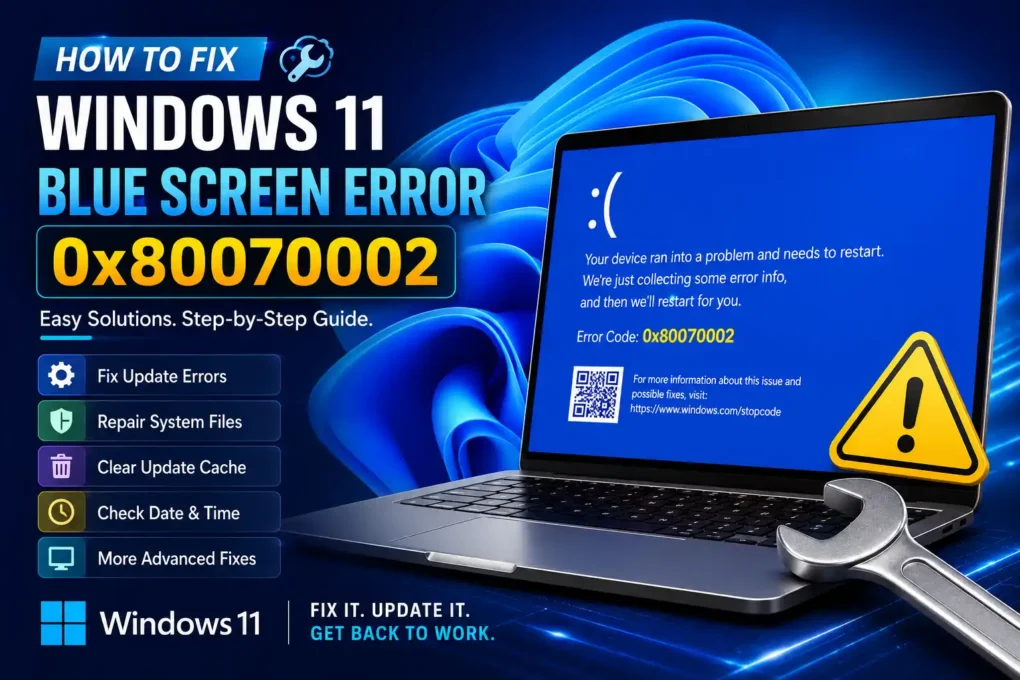
Windows 11 Error 0x80070002: What It Really Means & 14 Ways to Fix It. In this article I am going to teach you 14 ways to fixed Windows 11 Blue Screen error. In all these steps you will see real time screen shot to get better understanding of these procedures. Getting an unexpected error on Windows 11 can be frustrating, especially when it appears after a Windows Update or when your computer suddenly becomes unstable. One error that users may encounter is 0x80070002.
There is an important detail to understand before trying to fix it: 0x80070002 is generally not a traditional Blue Screen of Death (BSOD) stop code. It is more commonly associated with Windows Update, Windows installation, missing files, or corrupted system components.
However, a failed update can sometimes result in startup problems, repeated restarts, or boot loops, making the situation feel like a typical blue-screen problem.
The good news is that Windows 11 includes several built-in tools that can help you diagnose and repair the issue. Below are practical solutions, starting with the easiest ones.
1.What Does Error 0x80070002 Mean?
The error **0x80070002** usually means Windows cannot find a file or component required to complete an operation.
You may encounter it when:
- Installing Windows updates
- Upgrading Windows
- Installing system components
- Restoring Windows
- Running certain Windows services
- Starting the computer after an interrupted update
The problem can be caused by corrupted update files, missing system components, incorrect system settings, damaged Windows files, or software conflicts.
Before making major changes to your computer, it is always a good idea to back up important documents, photos, videos, and other personal files.
2.Restart Your Windows 11 Computer
Let’s begin with the simplest solution.
Sometimes an update service or Windows process gets stuck temporarily. A normal restart can clear the problem and allow Windows to start the process again.
Restart your computer and check whether the error appears again.
If everything works normally afterward, you may not need to do anything else. If the error keeps returning, continue with the following solutions.
3.Run the Windows Update Troubleshooter
Windows 11 has a built-in troubleshooter specifically designed to identify common Windows Update problems.
To access it, go to:
Settings → System → Troubleshoot → Other troubleshooters
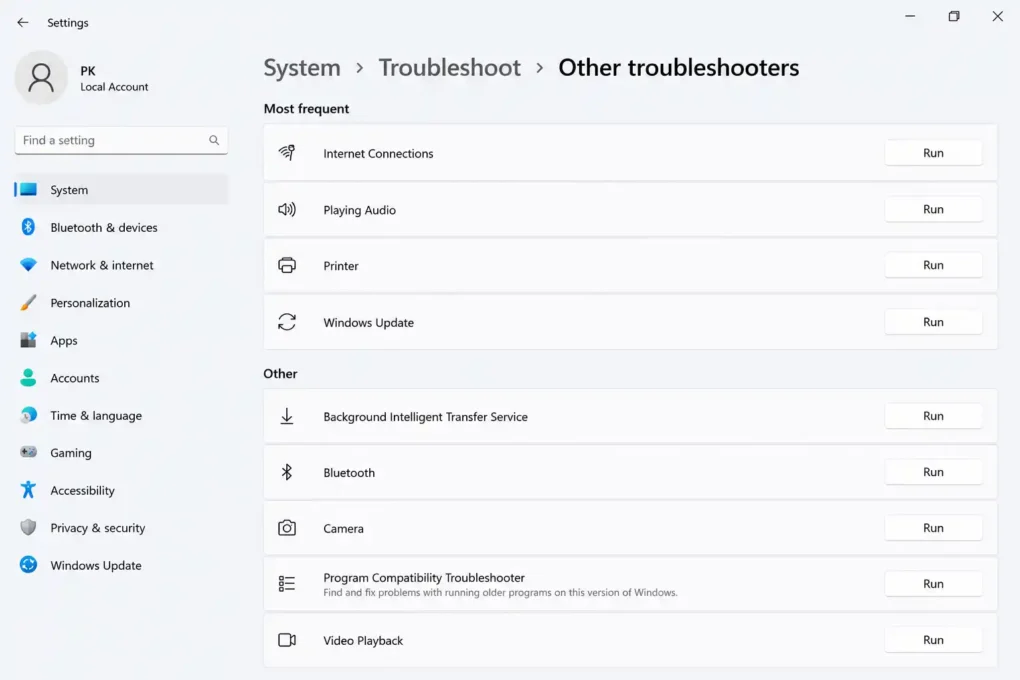
Find Windows Update and click Run.
Windows will check several update-related components and attempt to identify problems automatically.
When the troubleshooting process finishes, restart your PC and try checking for updates again.
4.Check Your Date and Time Settings
This is an easy setting to overlook.
Windows relies on the correct date, time, and time zone for various online services, including Windows Update. If your computer’s clock is significantly wrong, it can sometimes interfere with update-related processes.
Go to:
Settings → Time & language → Date & time

Make sure your time and time zone are correct. You can enable automatic time and time-zone settings if they are available on your system.
You can also select Sync now to synchronize the computer’s clock.
After making the changes, restart your PC and try Windows Update again.
5.Repair Corrupted Windows Files with SFC and DISM
Damaged or missing Windows system files are a common reason for system errors and failed updates.
Windows provides two useful repair utilities: System File Checker (SFC) and Deployment Image Servicing and Management (DISM).
Right-click the Start button and open Terminal (Admin) or Command Prompt (Admin)
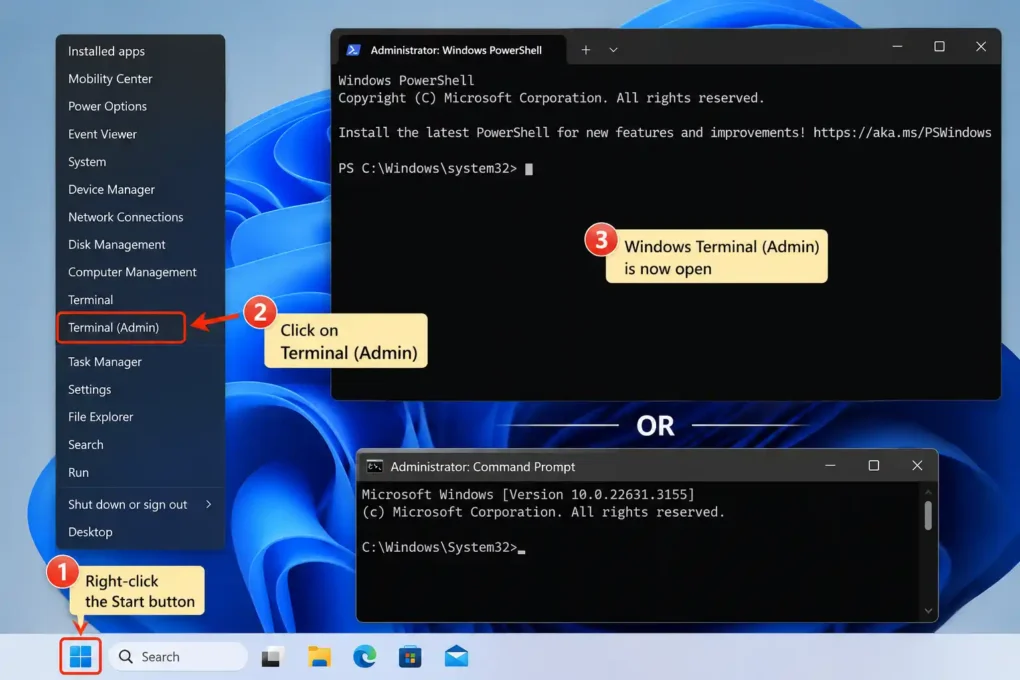
First, run:
“`text
sfc /scannow
Allow the scan to reach 100%. Windows will check protected system files and attempt to repair any problems it finds.
After SFC finishes, run:
“`text
DISM.exe /Online /Cleanup-Image /RestoreHealth
DISM repairs the Windows component store, which SFC may depend on when replacing damaged system files.
The DISM scan can take some time, so be patient and don’t close the Terminal window while it is running.
Once both commands have completed, restart your computer.
6.Clear the Windows Update Cache
Sometimes Windows Update repeatedly fails because previously downloaded update files have become corrupted.
Clearing the update cache allows Windows to download fresh files.
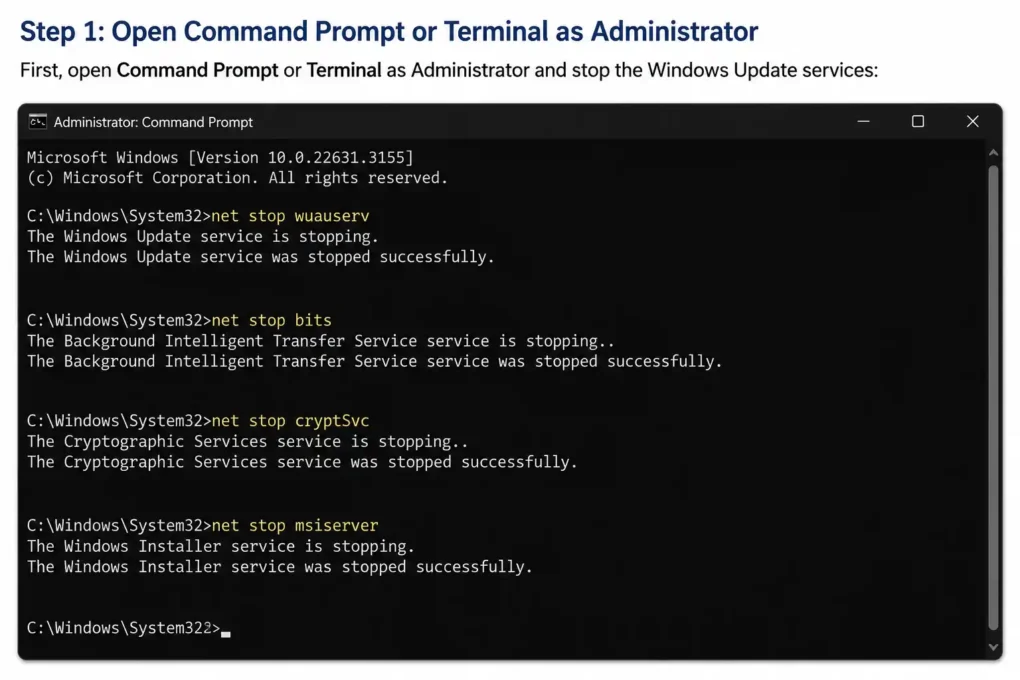
First, open Command Prompt or Terminal as Administrator and stop the Windows Update services:
“`text
net stop wuauserv
net stop bits
Next, open this folder in File Explorer:
“`text
C:\Windows\SoftwareDistribution
Delete the contents inside the SoftwareDistribution folder. Don’t delete the folder itself.
Windows will create new update files when the services start again.
Return to the Administrator Command Prompt and run:
“`text
net start wuauserv
net start bits
Restart your computer and check for Windows updates again.
If you aren’t comfortable modifying files inside a Windows system folder, you can skip this step and try the other solutions first.
7.Check Your Internet Connection
A Windows update needs a reliable internet connection to download its files correctly.
If your connection keeps dropping while an update is being downloaded, the update files may not be completed properly.
Try the following:
Once your connection is stable, try running Windows Update again.
- Restart your router.
- Check whether other websites are loading normally.
- If possible, try a wired connection.
- Disconnect and reconnect to Wi-Fi.
- Avoid shutting down the computer while an update is installing.
8.Check Your Hard Drive for Errors
Storage problems can sometimes prevent Windows from reading or writing important files correctly.
Windows includes a built-in tool called CHKDSK that can check the drive for file-system errors.
Open Terminal as Administrator and enter:
“`text
chkdsk C: /f
Windows may tell you that the drive is currently being used and ask if you want to schedule the check for the next restart.
Type Y, press Enter and restart your computer.
Windows will check the drive during startup. Allow the process to finish before interrupting it.
9.Update Your Device Drivers
Outdated or incompatible drivers can cause Windows to become unstable, particularly after a major operating system update.
Pay special attention to:
Open Device Manager and look for devices with warning symbols.
For the safest results, download drivers from the official website of your computer, motherboard, or hardware manufacturer.
- Graphics drivers
- Chipset drivers
- Storage drivers
- Network drivers
- Drivers for recently installed hardware
Avoid downloading drivers from unknown websites because an incorrect driver can create additional problems.
10.Think About Recently Installed Software
Try to remember whether the problem started shortly after installing something new.
For example, you may have recently installed:
- A new antivirus program
- A system-cleaning application
- A hardware utility
- A driver
- A Windows customization tool
- New hardware
If the timing matches, temporarily uninstalling the recently installed software can help determine whether it is causing the problem.
Restart Windows after removing the application and see whether the error returns.
11.Check Windows Update History
If your computer was working normally before a recent Windows update, the update history can provide a useful clue.
Go to:
Settings → Windows Update → Update history
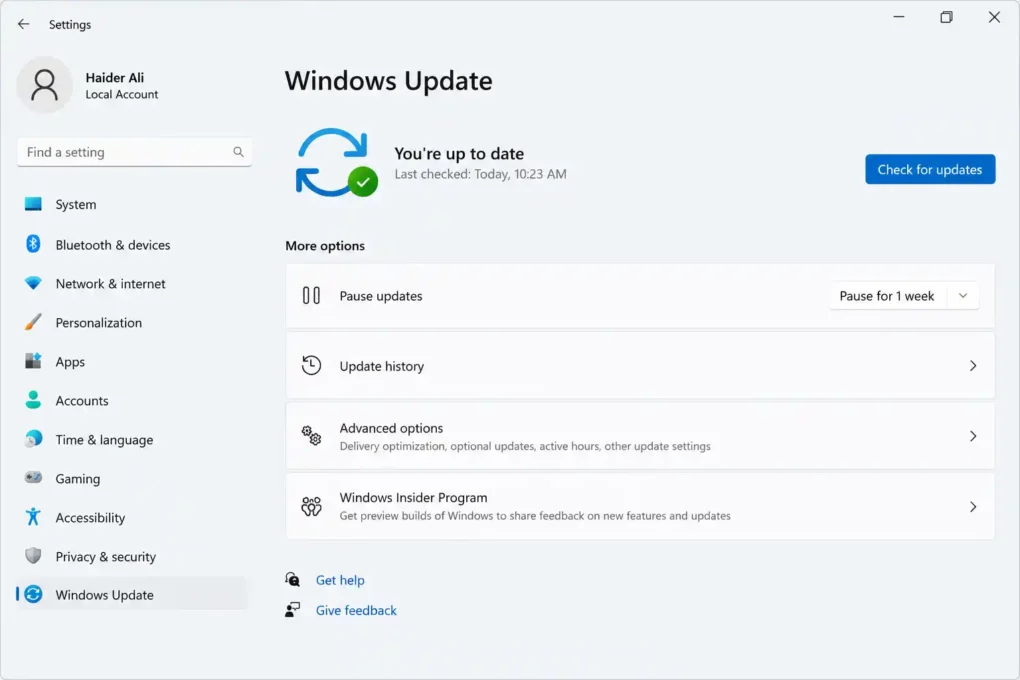
Look at the updates installed around the time the problem started.
If a particular update appears to coincide with the problem, Windows may provide an option to uninstall it.
However, don’t remove security updates without a good reason. If you aren’t sure which update is responsible, it is better to investigate the issue further before uninstalling anything.
12.Try System Restore
If the error started recently and your computer has an available restore point, **System Restore** may help return Windows to an earlier working state.
Search Windows for:
Create a restore point
Open the result and select System Restore.
Choose a restore point created before the problem began and follow the instructions.
System Restore normally doesn’t remove your personal documents, but it can remove applications, drivers, and system changes made after the selected restore point.
16.Start Windows in Safe Mode
If Windows keeps crashing, restarting, or failing to start normally, Safe Mode can help you identify whether a third-party application or driver is involved.
You can access Windows recovery options through:
Settings → System → Recovery → Advanced startup → Restart now
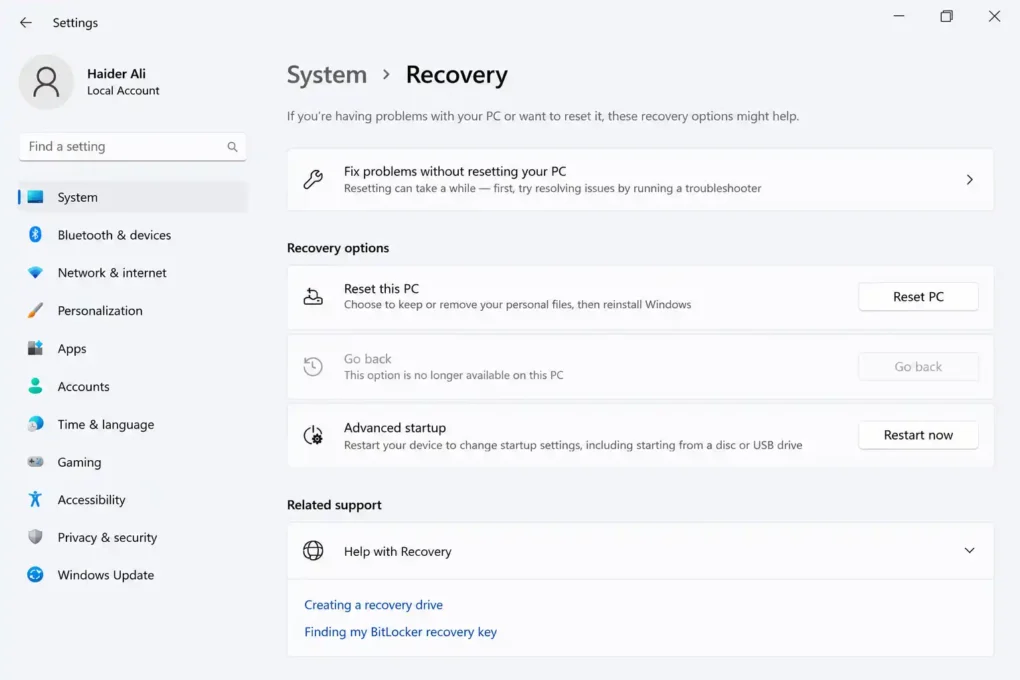
From the recovery environment, select the appropriate startup settings and enable Safe Mode.
If Windows works normally in Safe Mode, a recently installed driver, application, or background service could be contributing to the problem.
13.Scan Your Computer for Malware
Malware can interfere with Windows files, services, and update components.
You can use the built-in Windows Security application to check your computer.
Go to:
Settings → Privacy & security → Windows Security → Virus & threat protection
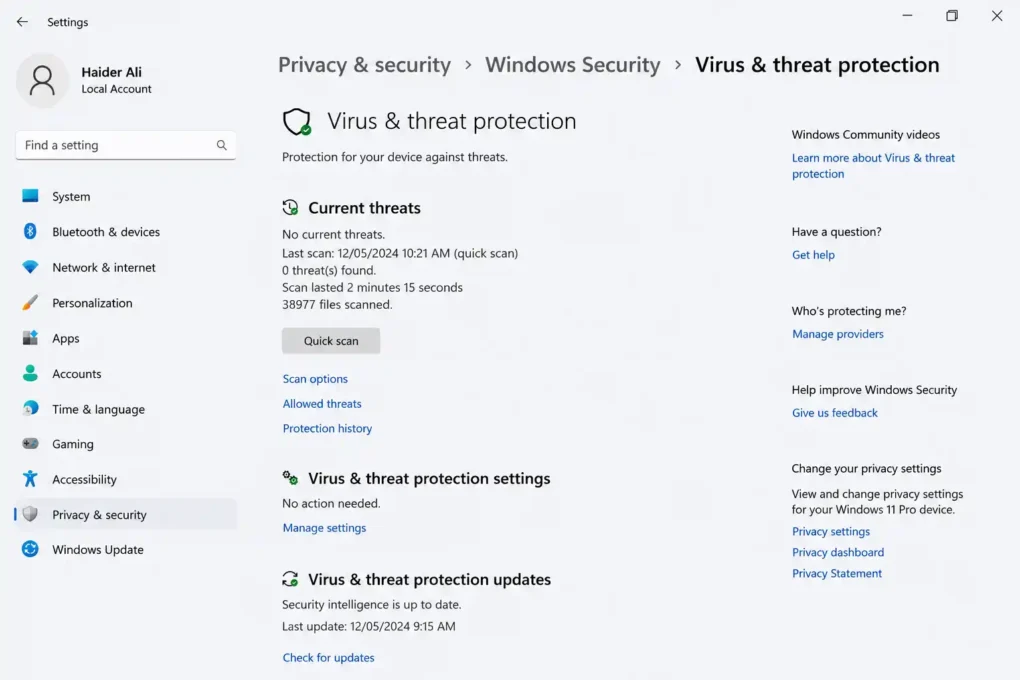
Run a scan and allow Windows Security to handle anything suspicious that it finds.
You generally don’t need multiple antivirus programs running at the same time. Several security applications can sometimes interfere with each other.
14.Reset Windows 11 as a Last Resort
If none of the previous solutions work and Windows continues to experience serious problems, you can consider Reset this PC.
Go to:
Settings → System → Recovery → Reset this PC
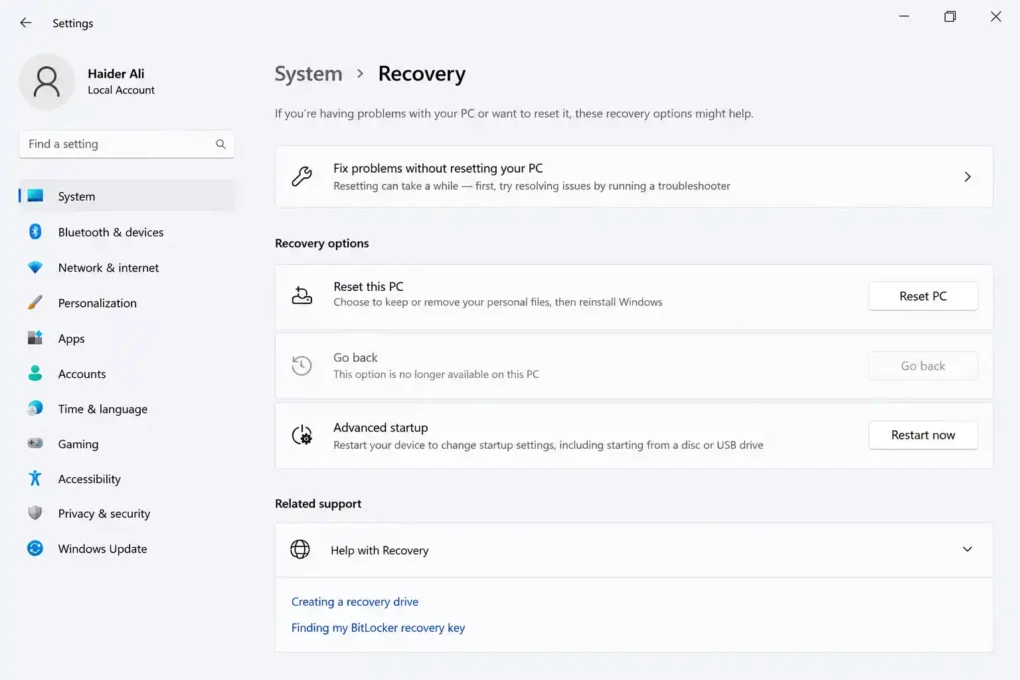
Depending on the options available, Windows can reinstall the operating system while allowing you to either keep your personal files or remove everything.
Before using this option, make a complete backup of your important data.
A Windows reset is a major step and should generally be considered after you have tried system-file repairs, update troubleshooting, driver checks, and other less disruptive solutions.
What If You Are Actually Getting a Blue Screen?
If your computer is genuinely displaying a blue screen, don’t assume that **0x80070002** is the actual BSOD stop code.
Look carefully at the blue-screen message. Windows normally displays a separate **STOP CODE**, which is much more useful for identifying the cause of a system crash.
For example, Windows may display a stop code related to a driver, memory problem, system service, or hardware failure.
If you can note the exact stop code and when the crash occurs, troubleshooting becomes much easier.
Frequently Asked Questions
Is 0x80070002 a Windows 11 blue screen error?
Not usually. **0x80070002 is primarily associated with missing files, Windows Update, and installation-related problems.** It can appear during situations that lead to startup problems, but it isn’t generally considered a standard BSOD stop code.
Can corrupted Windows files cause 0x80070002?
Yes. Missing or damaged system files can interfere with Windows Update and other system operations. Running **SFC** and **DISM** can help repair these components.
Should I reset Windows if I see 0x80070002?
Not immediately. A Windows reset should normally be one of the last options. Try the Windows Update troubleshooter, check your date and time, repair system files, clear the update cache, and investigate recent software or driver changes first.
Is it safe to delete the Software Distribution folder?
The folder itself should not normally be deleted. Instead, stop the relevant update services and clear its contents. Windows can recreate the necessary update files afterward.
What should I do if Windows keeps restarting?
If your computer repeatedly restarts, try accessing **Windows Recovery Environment** and starting Windows in Safe Mode. From there, you can investigate recent drivers, updates, and software that may be causing the problem.
Final Thoughts
The **0x80070002 error in Windows 11 is usually connected to Windows Update, installation problems, missing files, or damaged system components rather than being a conventional Blue Screen of Death stop code**.
That’s why it is important to look at what was happening when the error appeared. If it occurred during a Windows Update, start by running the Windows Update Troubleshooter and checking your date and time settings.
If that doesn’t solve the problem, the SFC and DISM tools can help repair damaged Windows components. Clearing the Windows Update cache is another useful option when an update appears to be stuck or repeatedly fails.
For persistent problems, check your hard drive, update your device drivers, review recently installed software and Windows updates, and consider System Restore.
And if you’re actually seeing a blue screen, make sure you identify the separate STOP CODE shown on the screen. That information can point to the real cause of the crash.
Most importantly, keep your important files backed up before performing major repairs or resetting Windows. A little preparation can prevent a frustrating Windows problem from becoming a serious data-loss situation.
Windows 11 Error 0x80070002: What It Really Means & 14 Ways to Fix It