10 Proven Ways to Speed Up Windows 11 for Gaming & Productivity. Let’s be honest: Windows 11 is slick, modern, and packed with great features. But over time—or right after a major system update—it can start to feel a bit laggy. Apps take longer to load, your frame rates in games drop slightly, and your once-snappy PC starts to drag.
The good news? You don’t need to buy expensive upgraded hardware or reinstall the operating system from scratch to get that “new PC” feel back. By tweaking a few built-in settings, you can eliminate bloat, free up system resources, and unlock smooth performance for both heavy productivity tasks and gaming sessions.
Here are 10 proven ways to speed up Windows 11 today.
1. Disable Unnecessary Startup Apps
Every time you boot up your PC, dozens of applications try to start automatically in the background. Software like Spotify, Discord, OneDrive, and launcher utilities quietly consume precious RAM and CPU cycles right out of the gate.
How to fix it:
- Press
Ctrl + Shift + Escto open Task Manager. - Click on the Startup apps tab on the left menu (represented by a speedometer icon).
- Sort the list by Startup impact.
- Right-click any app you don’t need immediately at boot (e.g., chat apps, game launchers) and select Disable.
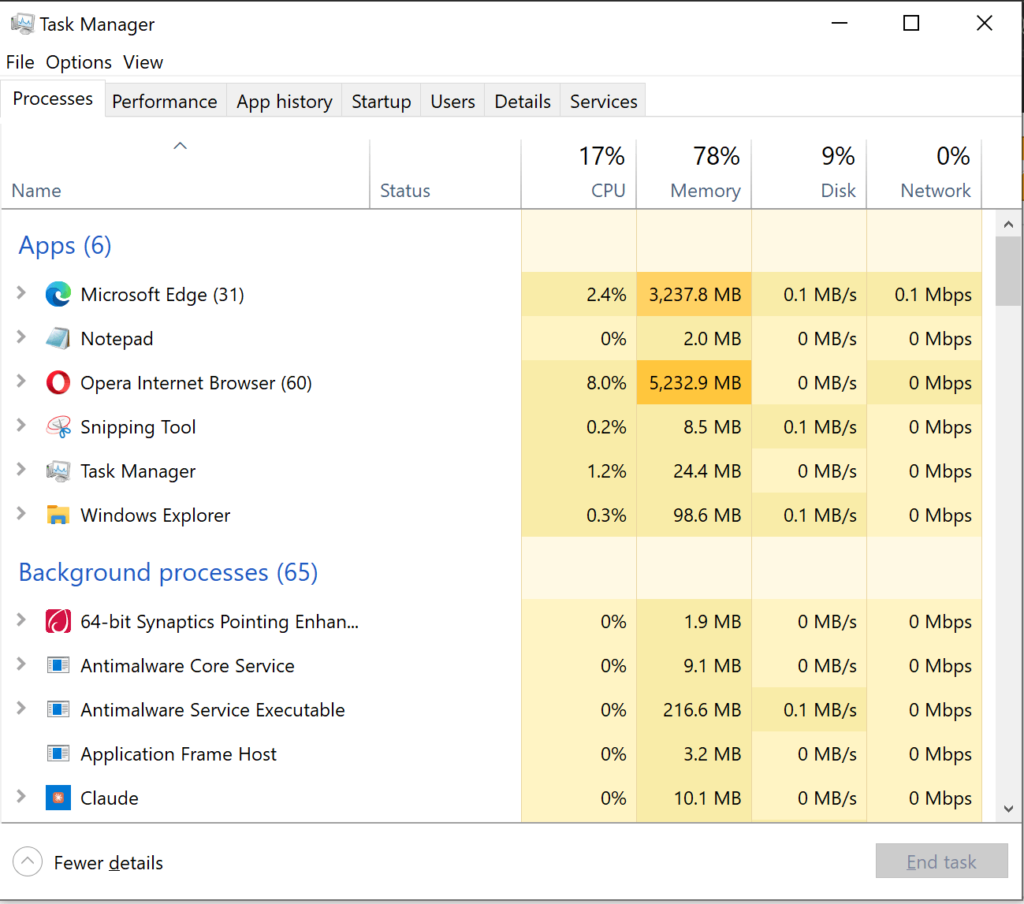
Note: Disabling an app here won’t uninstall it; it just prevents it from running until you open it manually.
2. Turn On Game Mode (and Enable HAGS)
Windows 11 includes a dedicated feature called Game Mode designed to optimize system resources while gaming. When active, it prevents Windows Update from installing drivers or sending restart notifications, while giving priority access to your CPU and GPU for your active game.
How to enable Game Mode:
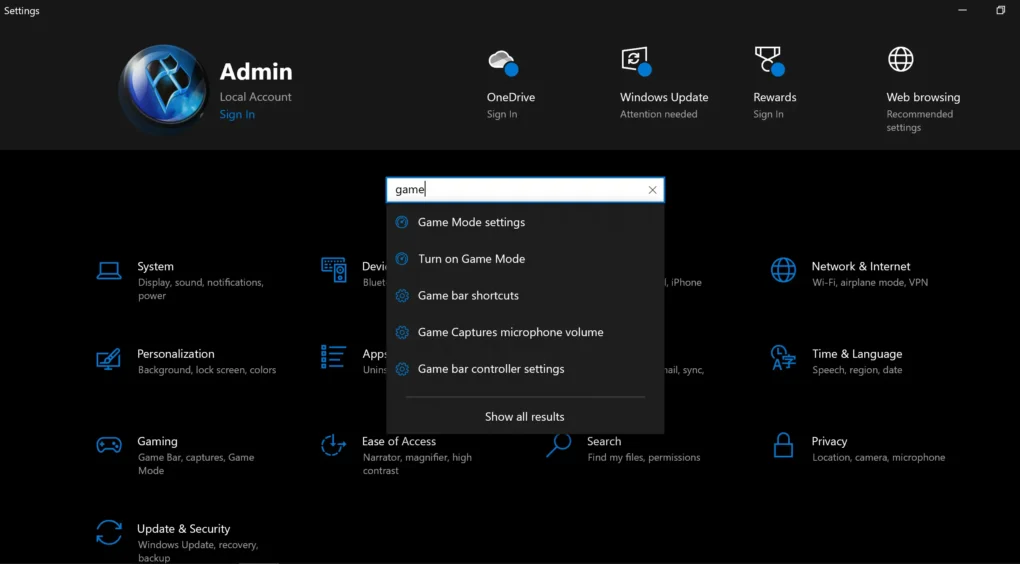
- Go to Settings (
Win + I) > Gaming > Game Mode. - Toggle Game Mode to On.
3. Disable Visual Effects and Transparency
Windows 11 features subtle drop shadows, smooth window animations, and translucent acrylic textures. While visually appealing, these elements constantly eat into your GPU and memory performance—especially on laptops or older hardware.
How to adjust for performance:
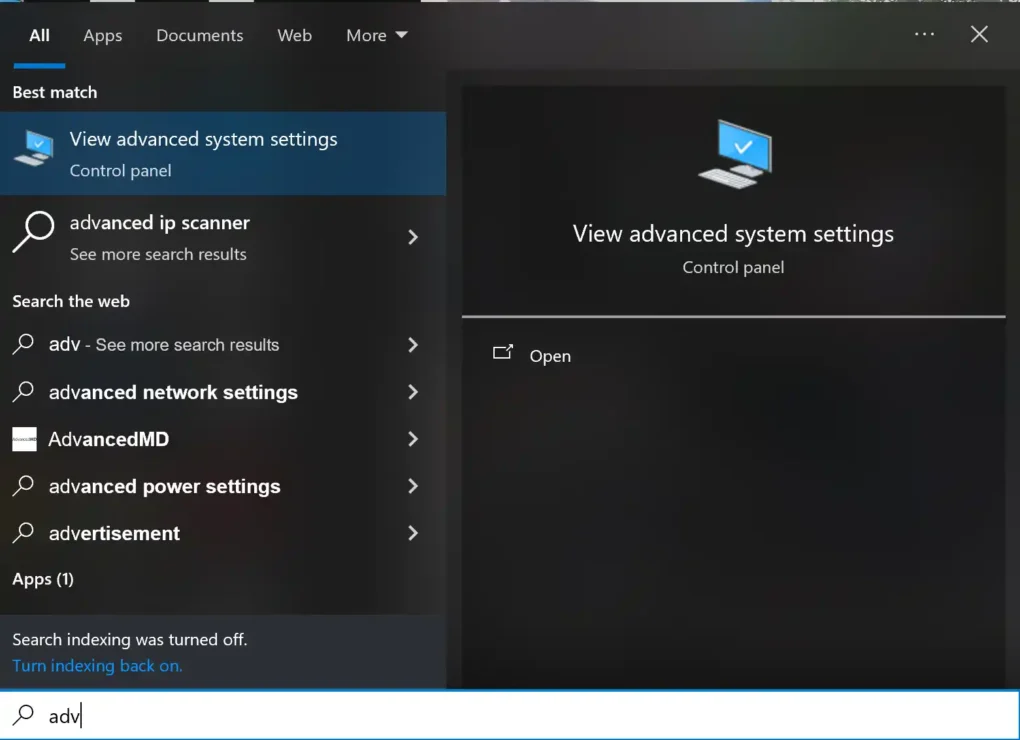
- Press the
Winkey, typeView advanced system settings, and press Enter. - Under the Advanced tab, click Settings under the Performance section.
- Select Adjust for best performance (or select Custom and keep only Smooth edges of screen fonts checked so text remains crisp).
- Click Apply and OK.
Additionally, turn off transparency effects by going to Settings > Accessibility > Visual effects and toggling Transparency effects to Off.
4. Enable High Performance / Ultimate Performance Power Plan
By default, Windows 11 often ships set to a “Balanced” power mode to save energy. If you are on a desktop PC—or a laptop plugged into wall power—you want your hardware delivering 100% of its capabilities without energy throttling.
How to switch power modes:
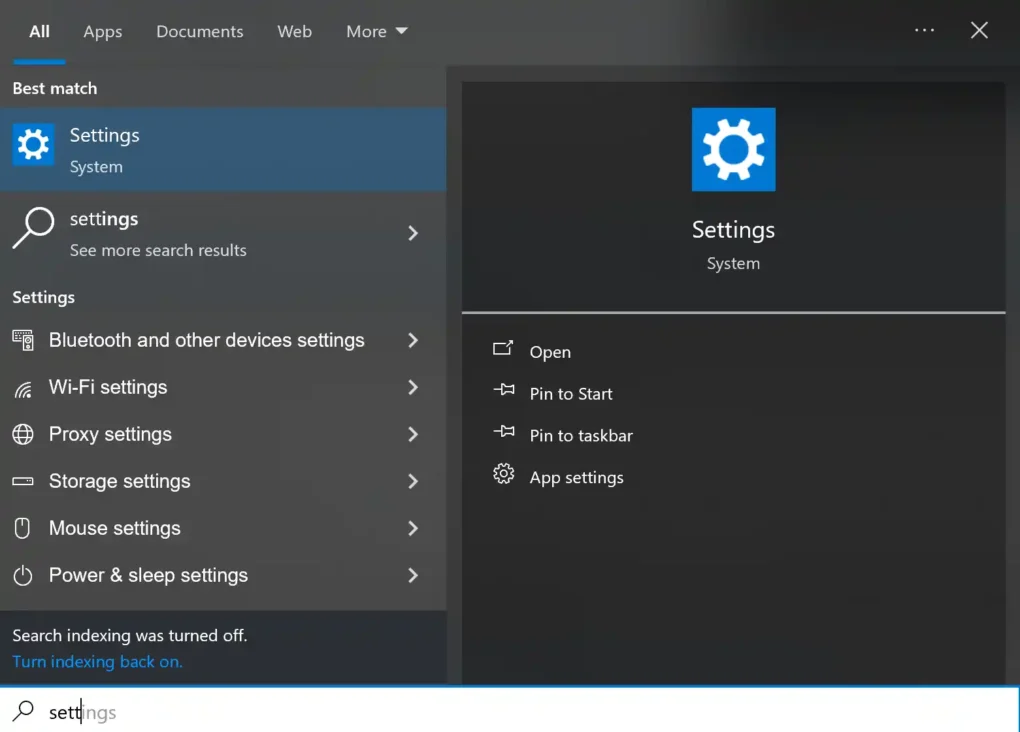
- Open Settings > System > Power (or Power & battery).
- Set Power mode to Best performance.
For Advanced Users: To unlock the hidden “Ultimate Performance” mode on desktops, open Command Prompt as Administrator and run: powercfg -duplicatescheme e9a42b02-d5df-448d-aa00-03f14749eb61 Then, open the classic Control Panel > Power Options and select your new profile.
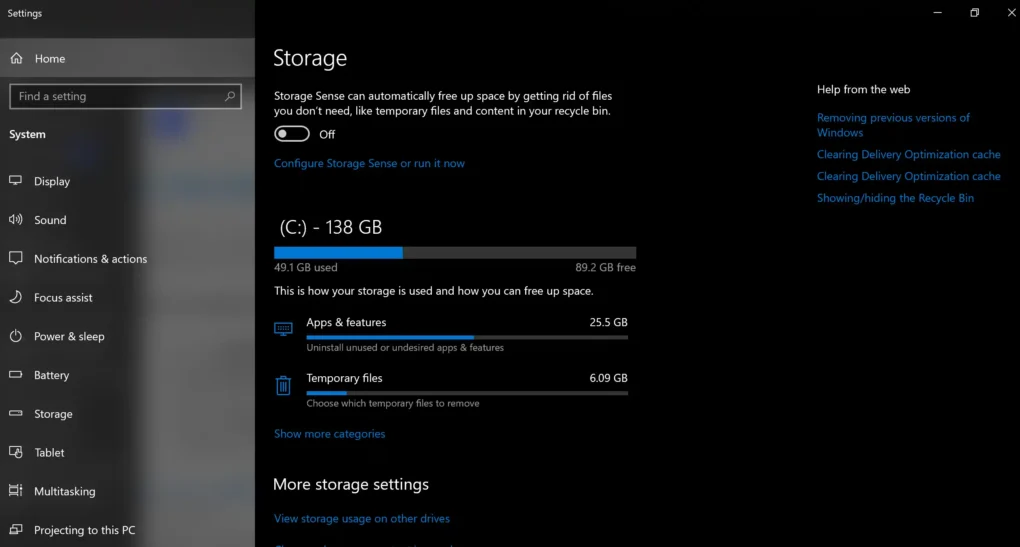
5. Clear Storage & Turn On Storage Sense
A cluttered C: drive—especially an SSD nearing full capacity—will cause noticeable system slowdowns. Windows needs free space for swap files, temp caches, and background operations.
How to automate cleanup:
- Go to Settings > System > Storage.
- Toggle Storage Sense to On. (This automatically clears out temporary files and cleans the Recycle Bin periodically).
- Click on Temporary files below to manually delete leftover update files, previous Windows installations, and temporary web caches immediately.
6. Turn Off Memory Integrity (Core Isolation) For Gamers
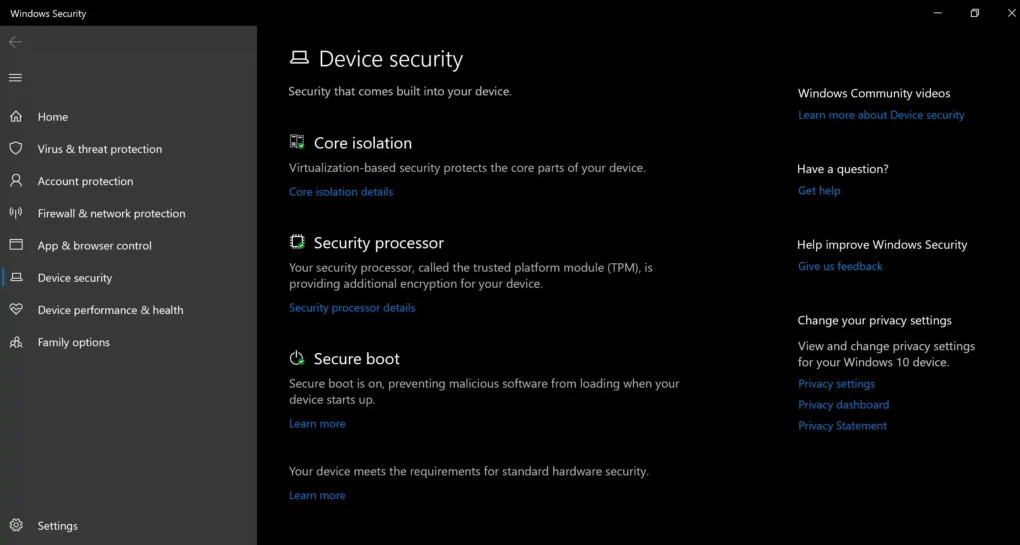
Windows 11 comes with a security feature called Memory Integrity (part of Core Isolation). It creates an isolated environment to prevent malicious code from hijacking high-security processes.
However, testing by Microsoft and major hardware outlets confirms this feature can decrease gaming performance by up to 5% to 10% depending on your hardware.
How to disable (Use with awareness):
- Search for Device Security in the Start menu.
- Under Core isolation, click Core isolation details.
- Toggle Memory integrity to Off.
- Restart your computer.
(If your PC is strictly used for critical corporate work or sensitive financial tasks, you may prefer leaving this feature enabled.)
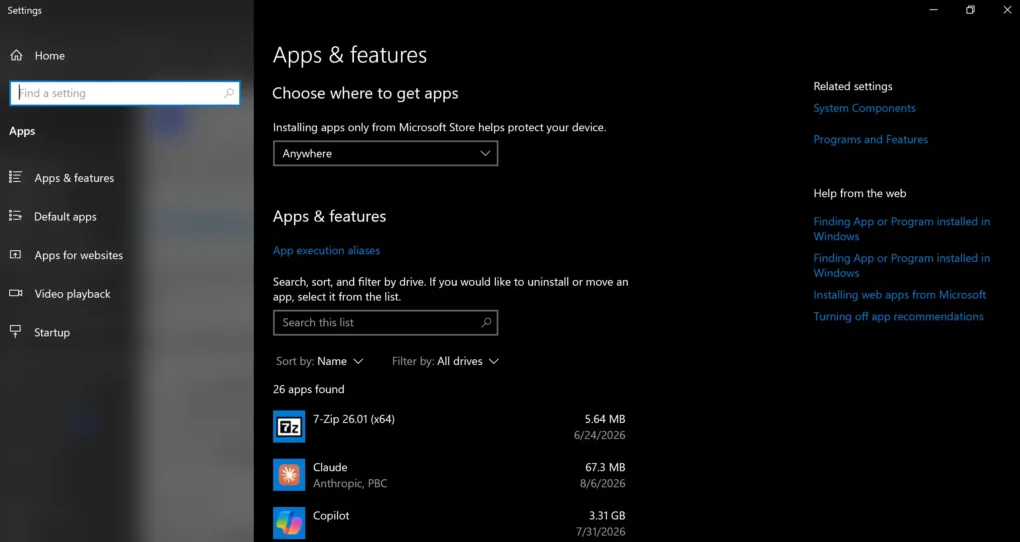
7. Disable Background Apps
Many Microsoft Store apps continue running background processes even when closed, fetching updates, notifications, and syncing data.
How to limit background app permissions:
- Open Settings > Apps > Installed apps.
- Find non-essential apps (like Weather, Xbox, Mail, or News).
- Click the three dots next to the app and select Advanced options.
- Under Background apps permissions, change the setting to Never.
8. Optimize Storage Drive (Trim Your SSD)
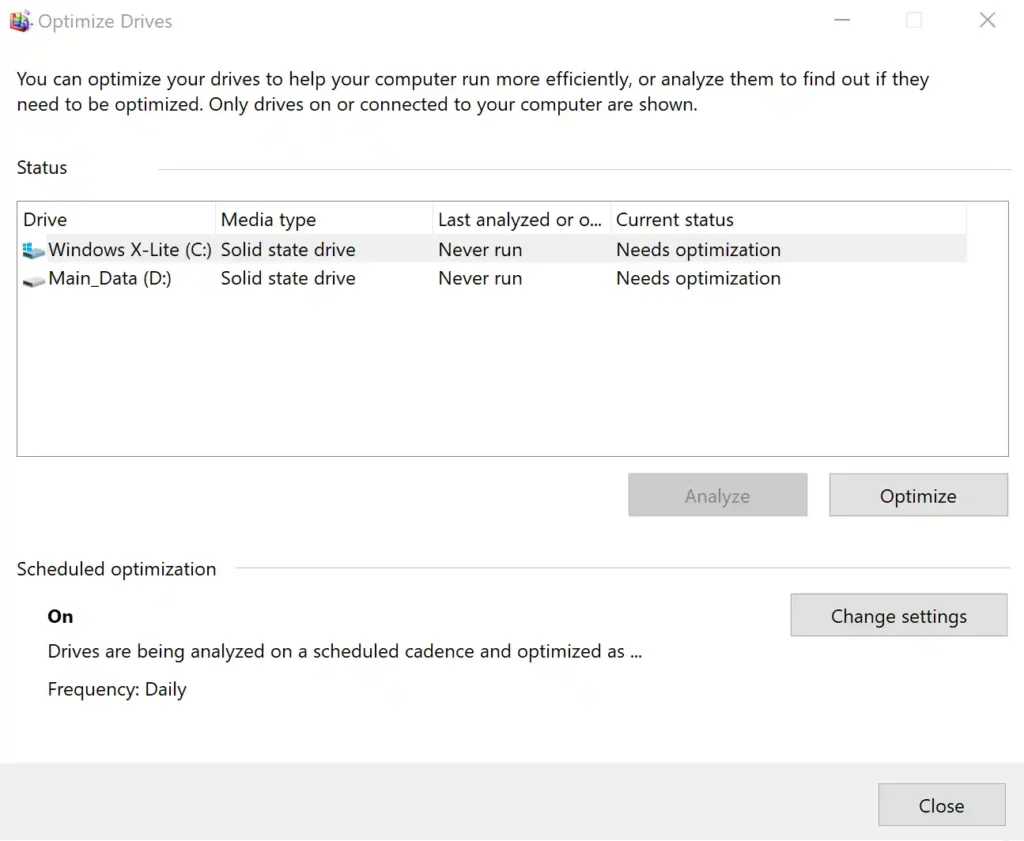
Unlike old magnetic hard drives that required lengthy “defragging,” modern Solid-State Drives (SSDs) benefit from a command called TRIM. TRIM informs your SSD which data blocks are no longer needed so they can be wiped clean internally, keeping read and write speeds fast.
How to optimize your drives:
- Search for Defragment and Optimize Drives in the Start menu.
- Select your main SSD drive (usually
C:). - Click Optimize.
- Ensure Scheduled optimization is turned On (weekly is ideal).
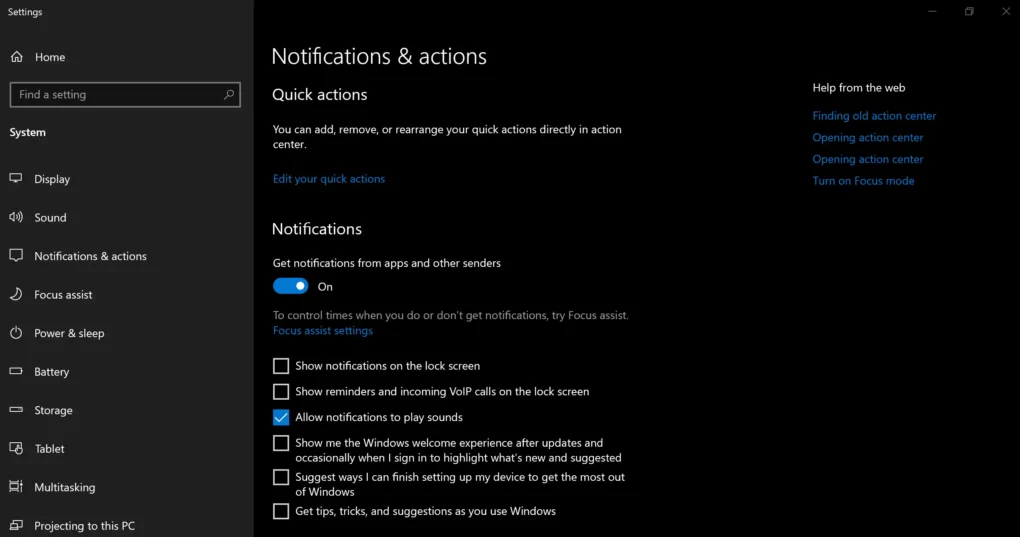
9. Disable Windows Notifications and Focus Assist
Constant pop-ups, tips, and banner alerts aren’t just distracting when you’re working or gaming; they also generate unnecessary system events.
How to streamline notifications:
- Go to Settings > System > Notifications.
- Turn off notifications entirely, or uncheck Get tips and suggestions when I use Windows.
- Scroll down and expand Additional settings to uncheck marketing and setup notifications from Microsoft.
10. Keep Drivers Updated (Especially GPU & Chipset)
Outdated drivers are one of the most common causes of system instability, frame drops in games, and unexpected performance hitches.
- Graphics Drivers: Always download the latest GPU drivers directly from NVIDIA (GeForce Experience/App), AMD (Adrenalin), or Intel (Arc Control) rather than relying solely on generic Windows Update drivers.
- Motherboard Chipset Drivers: Visit your motherboard manufacturer’s website (or AMD/Intel directly) to grab the latest chipset drivers, which improve how Windows handles CPU scheduling and power states.
Summary Checklist
| Optimization Step | Best For | Difficulty |
|---|---|---|
| Disable Startup Apps | Boot speed & Free RAM | Very Easy |
| Enable Game Mode & HAGS | Gaming FPS & Input Lag | Easy |
| Disable Visual Effects | Snappier UI responsiveness | Easy |
| Best Performance Power Mode | Maximum CPU/GPU output | Easy |
| Run Storage Sense | Drive health & Free Space | Easy |
| Disable Memory Integrity | Extra FPS boost in games | Moderate |
By taking 10 minutes to walk through these adjustments, you can strip away unnecessary background overhead and enjoy a faster, more responsive Windows 11 system built for performance.
10 Proven Ways to Speed Up Windows 11 for Gaming & Productivity